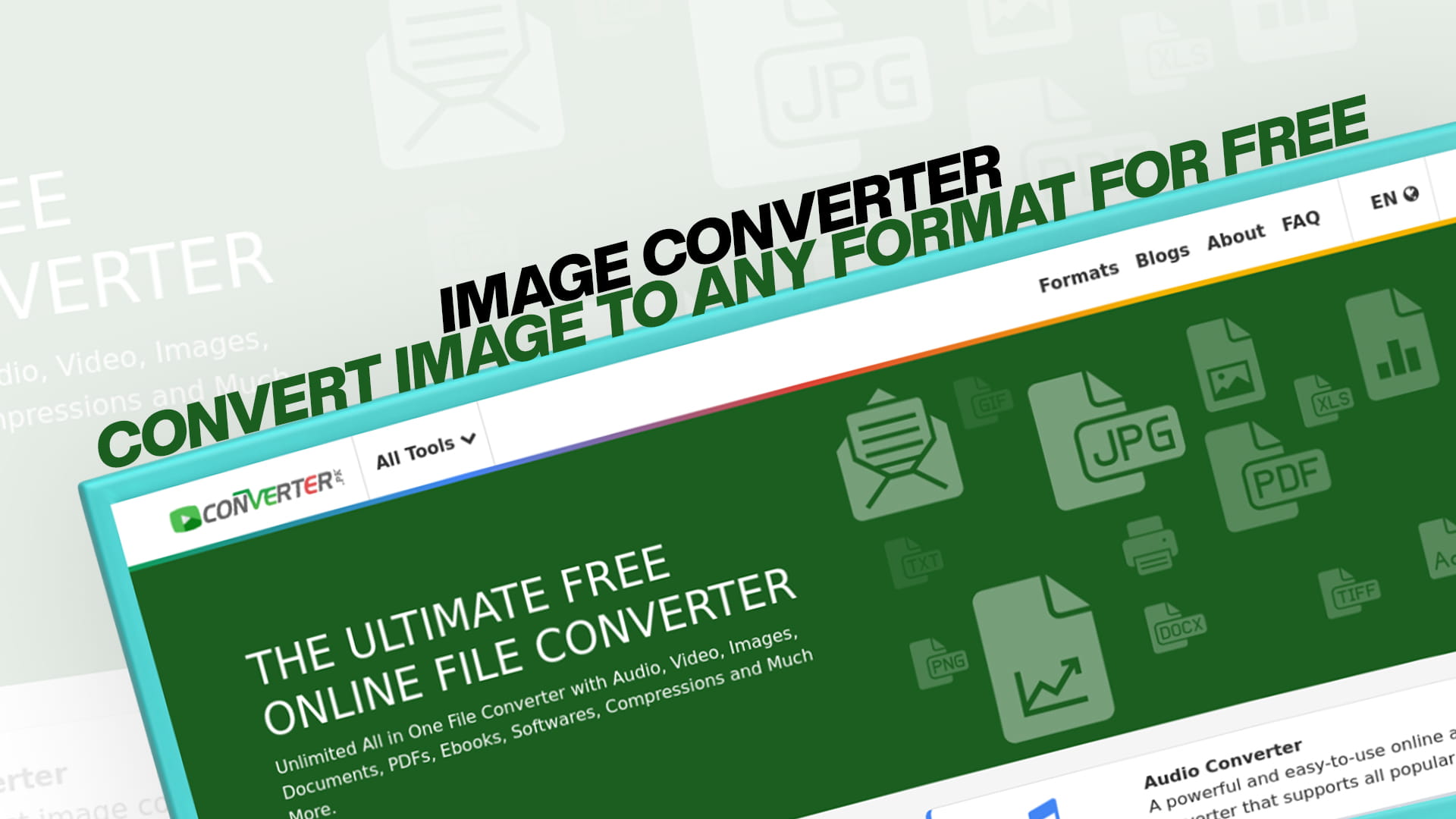
Image Converter: Convert Image to Any Format for Free
Pictures are everywhere. We take them on our phones, download them from the internet, receive them from friends and colleagues, and use them in everything from school projects to professional presentations. But if you have ever tried to upload an image to a website only to be told the format is not supported, or tried to open a photo only to find your device does not recognise it, you already know the frustration that comes with image format problems.
These are not rare, unusual situations. They happen to people every single day, all over the world. And the solution, in almost every case, is the same — converting the image from one format to another. That is exactly what an image converter is designed to do, and in this guide, we are going to cover everything you need to know about image conversion, the most important image formats, why they matter, and how you can convert any image quickly, easily, and for free using Converter.
Whether you are a photographer, a designer, a student, a blogger, a business owner, or simply someone who wants to share a photo without running into technical problems, this guide is written for you. No technical jargon, no confusing explanations — just clear, simple information that anyone can understand and act on.
What Is an Image Converter?
An image converter is a tool that takes an image file in one format and changes it into a different format. The visual content of the image — the colours, the shapes, the details — stays exactly the same. What changes is the file type, which is the way the image data is stored and encoded.
Different image formats store image data in different ways. Some formats compress the image heavily to create a small file size, which makes the image easy to share and upload, but may reduce its quality slightly. Others store the image with no compression at all, preserving every detail at the cost of a much larger file size. Some formats support transparent backgrounds, while others do not. Some are designed for use on websites, others for printing, and others for professional photography and editing.
An image converter bridges the gap between all these different formats. It allows you to take any image and turn it into whichever format best suits your current need — whether that is uploading to a website, sharing on social media, printing at high resolution, editing in a professional application, or sending via a messaging app.
Why You Might Need to Convert an Image
There are so many different situations in everyday life where image conversion becomes necessary. Here are some of the most common ones:
The platform you are uploading to does not accept your image format. Many websites, apps, and platforms only accept certain image formats. If you try to upload a TIFF file to Instagram or a BMP to a web form that only accepts JPG or PNG, the upload will fail. Converting your image to the accepted format solves this instantly.
Your image file is too large to send or upload. Some image formats produce very large files that are difficult to send via email or upload to websites with file size limits. Converting to a more compressed format significantly reduces the file size without making the image look noticeably different in most cases.
Your device or software cannot open the image. Not all devices and programs can open all image formats. If someone sends you an image in a format your photo viewer does not support, you are stuck unless you can convert it to something your device understands.
You need a transparent background. Not all image formats support transparency. If you need an image with a transparent background — for example, a logo that needs to sit on top of different coloured backgrounds — you need a format that supports transparency, like PNG. If your image is currently in JPG format, you will need to convert it.
You are preparing images for professional printing. Professional printers often require images in specific high-quality formats that preserve maximum detail. Converting your images into the right format before sending them to a printer ensures the best possible print quality.
You are building a website and need images to load fast. Website performance is crucial, and slow-loading images are one of the biggest contributors to slow websites. Newer image formats like WebP offer excellent quality at significantly smaller file sizes compared to older formats like JPG and PNG, which helps websites load faster. Converting your images to WebP is one of the most effective ways to improve your website's loading speed.
You want to edit an image professionally. Some professional editing applications work best with specific formats. For example, many designers prefer to work with PNG files. They support transparency, or with RAW files, because they contain the maximum amount of detail from the camera. Converting images into the right format before editing gives you the best results.
The Most Important Image Formats Explained
Understanding the different image formats and what each one is good for makes it much easier to know which format to choose when you need to convert an image. Here is a simple guide to the most widely used image formats:
JPG or JPEG (Joint Photographic Experts Group) is, without question, the most widely used image format in the world. It is the standard format for photographs and is used by virtually every digital camera and smartphone by default. JPG uses a type of compression called lossy compression, which means it reduces the file size by permanently discarding some image data. In most cases, this loss is barely noticeable to the human eye, but it does mean that JPG images lose a little quality each time they are saved. JPG is an excellent choice for photographs and images with lots of colours and gradients, but it is not ideal for images that contain text or sharp edges, as these can look blurry or blocky when compressed.
PNG (Portable Network Graphics) is another extremely popular image format, particularly on the web. Unlike JPG, PNG uses lossless compression, which means it reduces file size without discarding any image data. This results in slightly larger files than JPG, but the image quality is perfectly preserved. The most important feature of PNG is its support for transparent backgrounds. This makes it the go-to format for logos, icons, graphics, and any image that needs to be placed on top of different backgrounds without a white box appearing around it. PNG is also a good choice for images that contain text or sharp lines, as these remain crisp and clear.
GIF (Graphics Interchange Format) is one of the oldest image formats on the internet and is best known today for its use in animated images. GIFs support short, looping animations, which is why they are so popular on social media and messaging apps. However, GIFs have a significant limitation — they only support 256 colours, which makes them unsuitable for photographs or complex images. For simple animations, icons, and graphics with limited colours, GIF works perfectly well.
BMP (Bitmap) is a format developed by Microsoft that stores image data without any compression. This means BMP files are extremely high quality but also extremely large. A BMP version of an image can easily be ten to twenty times larger than the equivalent JPG. BMP files are not practical for web use or sharing, but they are useful in certain professional and technical contexts where uncompressed image data is required.
TIFF (Tagged Image File Format) is a professional image format used primarily in photography, graphic design, and publishing. Like BMP, TIFF files are large because they store image data at a very high quality. Unlike BMP, TIFF supports a number of advanced features that make it useful for professional work, including support for multiple layers and multiple pages within a single file. TIFF is the format of choice for professional photographers, magazine publishers, and anyone who needs to print images at the highest possible quality.
WebP is a modern image format developed by Google specifically for use on the web. It offers excellent image quality at significantly smaller file sizes compared to both JPG and PNG. A WebP image can be anywhere from 25 to 35 percent smaller than an equivalent JPG image, with no noticeable difference in visual quality. This makes WebP an outstanding choice for websites, as smaller images mean faster loading times. Most modern web browsers support WebP, and its adoption has been growing rapidly in recent years.
SVG (Scalable Vector Graphics) is a fundamentally different type of image format from all the others on this list. While formats like JPG, PNG, and WebP store images as grids of pixels, SVG stores images as mathematical descriptions of shapes, lines, and curves. This means that an SVG image can be scaled up or down to any size without ever losing sharpness or becoming blurry. You could print an SVG logo on a business card or on a billboard, and it would look equally sharp at both sizes. SVG is the perfect format for logos, icons, illustrations, and any graphic that needs to be used at multiple different sizes.
RAW formats are used by professional digital cameras to capture every single piece of image data the camera sensor records, without any processing or compression. This gives photographers enormous flexibility to adjust things like exposure, colour balance, and contrast when editing the image later. However, RAW files are very large and require specialised software to open and edit. Most photographers convert their RAW files to TIFF or JPG after editing.
HEIC (High Efficiency Image Container) is the default photo format used by Apple iPhones and iPads from 2017 onwards. It uses advanced compression technology to produce images that are roughly half the size of equivalent JPG files while maintaining the same or better quality. The downside of HEIC is that it is not yet universally supported — many websites, apps, and non-Apple devices cannot open HEIC files. Converting HEIC images to JPG or PNG is one of the most common image conversion tasks for iPhone users.
ICO (Icon) is a format used specifically for icons on Windows systems and websites. ICO files can contain multiple versions of the same icon at different sizes, which allows the operating system or browser to display the most appropriate size depending on the context. If you are creating a favicon for a website — the small icon that appears in the browser tab — you will need to convert your image to ICO format.
Meet Converter: Your Free Online Image Conversion Tool
Now that you have a clear picture of the different image formats and when to use them, it is time to talk about the tool that makes converting between all of them as easy and quick as possible. Converter is a free online platform that allows you to convert images from one format to another directly in your web browser, without downloading or installing any software.
Converter supports a comprehensive range of image formats, covering everything from the everyday JPG and PNG to professional formats like TIFF and RAW, modern web formats like WebP, and specialised formats like SVG and ICO. Whatever image format you are working with and whatever format you need to convert it to, Converter has you covered.
What makes Converter genuinely stand out is how simple and accessible it is. The platform is designed so that anyone can use it on their first try, without any guidance or technical knowledge. The interface is clean and uncluttered, the steps are clear and logical, and the whole conversion process takes just a couple of minutes from start to finish.
Beyond image conversion, Converter is also a fully comprehensive file conversion platform. It provides free conversion tools for audio files, video files, documents, PDFs, eBooks, software files, and compressed files. This means that no matter what type of file you need to convert, you can find the tool you need in one place, for free, without ever needing to download software or pay for a subscription.
How to Convert an Image Using Converter
The process of converting an image with Converter is designed to be as straightforward as possible. Here is exactly how it works:
Step 1: Open Converter in your browser. Launch any web browser on your device and navigate to the platform. The homepage is clean and well-organised, making it easy to find the image conversion tools right away.
Step 2: Navigate to the image converter. From the homepage, find the image conversion section. You will see a list of available output formats, allowing you to choose the specific format you want to convert your image to.
Step 3: Select your target format. Choose the format you want your image to be converted into. For example, if you want to convert a PNG to JPG, select JPG. If you want to convert a HEIC to PNG, select PNG. The choice of format depends entirely on what you need the image for.
Step 4: Upload your image. On the conversion page, upload your image file from your device. The upload is quick and simple, and the platform accepts images of various sizes and resolutions.
Step 5: Adjust optional settings if needed. Converter gives you the option to adjust certain settings before converting, such as the image quality, the colour profile, or the dimensions. For most conversions, the default settings will give you excellent results. But if you have specific requirements, these settings give you the control you need.
Step 6: Begin the conversion. Once you are happy with your settings, click the convert button. The platform will process your image and convert it to the selected format. This usually takes just a few seconds.
Step 7: Download your converted image. When the conversion is done, you will see a download link for your converted image. Click to download it, save it to your device, and it is ready to use.
Image Conversion for Social Media and Content Creation
Social media platforms and content creation tools have their own specific requirements when it comes to image formats, sizes, and resolutions. Understanding these requirements — and knowing how to meet them quickly — is a huge advantage for anyone who creates content online.
Instagram, for example, works best with JPG images for photographs and PNG for graphics. Facebook accepts both JPG and PNG, but recommends JPG for photos. Twitter similarly prefers JPG or PNG. Pinterest recommends vertical images in JPG or PNG format. Each platform also has its own preferred image dimensions, and uploading an image that is too large or in the wrong format can result in the platform compressing the image in ways that reduce its quality.
For bloggers and website owners, WebP is increasingly the format of choice for images used on web pages. Its smaller file sizes mean faster page load times, which not only improves the experience for visitors but also helps with search engine rankings, since page speed is one of the factors that search engines consider when ranking websites.
Content creators who produce videos and thumbnails need to be particularly careful about image formats. Thumbnail images for YouTube videos, for example, need to be in JPG, PNG, or GIF format and must meet specific size requirements. Having a reliable image converter means you can always prepare your thumbnails in exactly the right format.
Converter makes all of this simple. Whether you are converting a batch of photos for an Instagram post, preparing a thumbnail for YouTube, or optimising images for your blog, the platform gives you everything you need to get the job done quickly and for free.
Image Conversion for Professional Photography
Professional photographers work with image formats that most everyday users never encounter. Camera manufacturers use their own proprietary RAW formats — Canon uses CR2 or CR3, Nikon uses NEF, Sony uses ARW, and so on. These RAW files contain an enormous amount of image data that gives photographers incredible flexibility during the editing process.
However, RAW files are not suitable for sharing or publishing. They are too large, and most people do not have the software to open them. After editing, photographers need to convert their RAW files into a more accessible format — typically TIFF for maximum quality or JPG for sharing and distribution.
The ability to convert RAW files quickly and reliably is essential for any professional photographer, and it is something that Converter handles with ease. Rather than investing in expensive dedicated software just for file conversion, photographers can use Converter to quickly convert their RAW files into any format they need, completely free of charge.
Image Conversion for Web Development and Design
Web developers and designers are among the most frequent users of image converters, and for very good reason. Images play a central role in the visual design of websites, and choosing the right format for each image is an important part of creating a website that looks great and performs well.
For web developers, one of the most impactful things they can do to improve website performance is to convert their images to WebP format. Research has consistently shown that WebP images are significantly smaller than equivalent JPG and PNG images, which translates directly into faster page load times. Faster websites provide a better experience for users and are rewarded with better rankings in search engine results.
For designers, the ability to convert between formats like PNG, SVG, and PDF is a daily necessity. Logos and icons need to be in SVG format for scalability. Images with transparent backgrounds need to be in PNG. Design files that need to be shared with clients or sent to printers often need to be in PDF or TIFF format.
Converter provides all the image format conversion capabilities that web developers and designers need, in a simple and fast tool that fits seamlessly into any workflow.
The Advantages of Using a Free Online Image Converter
There are software applications available that handle image conversion — some free, some paid. But online converters like Converter offer several advantages that make them the preferred choice for many users:
Nothing to download or install. Online converters work entirely in your browser. There is no software to download, no installation to sit through, and no risk of accidentally installing unwanted programs alongside your conversion tool. You simply open the website and start converting.
Compatible with every device. Whether you are using a Windows PC, a Mac, a Linux machine, a tablet, or a smartphone, an online converter works the same way on all of them. You are not tied to a specific operating system or a specific type of device.
Always the latest version. Online tools are updated automatically. When new image formats become popular or existing formats' support is improved, you benefit from those improvements instantly without having to do anything.
Completely free. Many desktop image editing and conversion applications are expensive. Converter is completely free, which means everyone can access professional-quality image conversion regardless of their budget.
Simple enough for anyone to use. You do not need to be a graphic designer or a tech professional to use an online image converter. The process is simple, clear, and can be completed by anyone in just a few clicks.
Practical Tips for Better Image Conversion Results
Even though image conversion is a straightforward process, a few practical tips can help you consistently get the best results:
Always keep the original image. Before you convert any image, make sure you have the original file saved in a safe location. If the conversion does not produce the result you expected, you can always go back to the original and try again.
Choose the right format for the job. Think about what you are going to use the converted image for before selecting your output format. If you are posting a photograph online, JPG is usually the best choice. If you need transparency, choose PNG. If you are building a website and speed matters, consider WebP. If you need a scalable graphic, go with SVG.
Pay attention to image quality settings. When converting to a compressed format like JPG, you usually have the option to adjust the quality level. A higher quality setting produces a better-looking image but a larger file. A lower quality setting produces a smaller file, but the image may look noticeably degraded. Finding the right balance for your specific needs is important.
Consider the resolution. If you are converting an image for print, make sure the resolution is high enough. Images for print generally need to be at least 300 DPI (dots per inch), while images for web use can be 72 or 96 DPI. Some conversion tools allow you to adjust the resolution as part of the conversion process.
Check the converted image before using it. Always open the converted image and inspect it before putting it to use. Check that the colours look right, that any transparency is working as expected, that there are no visible compression artifacts, and that the overall quality meets your needs.
Image Conversion and Its Growing Importance in the Digital Age
We are creating and consuming more images than ever before in human history. Smartphones make it possible for anyone to take professional-quality photographs at any time. Social media platforms encourage the constant sharing of images. E-commerce has made product photography a critical business function. Digital marketing relies heavily on compelling visuals. The demand for images is growing, and with it, the need for flexible, reliable tools that can handle images in all the different formats that different platforms and applications require.
Image conversion is no longer a niche technical task for specialists. It is a practical skill that virtually everyone who uses a digital device will need at some point. The good news is that with tools like Converter, it does not need to be complicated, expensive, or time-consuming. Converting an image from one format to another is now as simple as a few clicks, accessible to everyone, and completely free.
As new image formats continue to emerge and the requirements of different platforms and devices continue to evolve, having a reliable and up-to-date image converter in your toolkit is more valuable than ever. Whether you are dealing with the latest smartphone image formats like HEIC or preparing images for the next generation of web technologies, a good image converter keeps you ahead of the curve without any effort on your part.
Final Thoughts
Image format problems are one of the most common and most frustrating technical issues that people encounter in their digital lives. But they are also one of the easiest to solve. With a free, fast, and easy-to-use image converter like Converter, you are never more than a few clicks away from having your image in exactly the format you need.
Whether you are converting a photograph for social media, preparing graphics for a website, processing professional camera files, creating images for print, or just trying to open a file that your device does not recognise, Converter gives you all the tools you need to get the job done quickly and without any hassle.
And because Converter is not just an image converter — it also handles audio, video, documents, PDFs, eBooks, software files, and compressed files — it is the only conversion tool most people will ever need. One platform, every file type, completely free.
So the next time you find yourself with an image that is in the wrong format, do not waste time searching for complicated solutions. Head over to Converter, choose your format, upload your image, and have your perfectly converted file ready to download in just a couple of minutes. That is how simple image conversion should be — and with Converter, that is exactly what it is.